さくらのVPSで「ストレージ変更オプション」を申し込んでストレージ容量を倍増させたり、スケールアップして上位プランに変更した際には、増量した仮想ディスク容量をOSに認識させる作業(ディスク拡張)を行う必要がある。
このディスク拡張作業を行わないと、契約上は利用できる仮想ディスク容量が増加しているのに、OSが認識していないため実際に利用することができない。
その対策として自分でディスク拡張作業を行うことになるのだが、さくらの公式サイトでは、増量した仮想ディスク容量を「新しいパーティションを作成して割り当てる」ための公式マニュアルしか見当たらない。
しかし、通常の運用では「既存のパーティションを拡張する」ことのほうが需要があると思うので、その方法を解説します。
■動作確認環境
CentOS Linux 7.9
プラン変更の内容とその後の認識状況
今回行ったプラン変更(スケールアップ)は以下のとおりです。
- 「さくらのVPS 512MBプラン(v5)」から「さくらのVPS 1GBプラン(v5)」へ変更
- 同時に「ストレージ変更オプション」を申し込み、ストレージ(SSD)容量を50GBから100GBに増量
512MBプランを利用していた際も、ストレージ変更オプションを利用していたので、VPSサーバーのスペックは以下のように変更になります。
| プラン変更前 | プラン変更後 | |
|---|---|---|
| CPU | 仮想1Core | 仮想2Core |
| メモリ | 512MB | 1GB |
| ストレージ(SSD) | 50GB | 100GB |
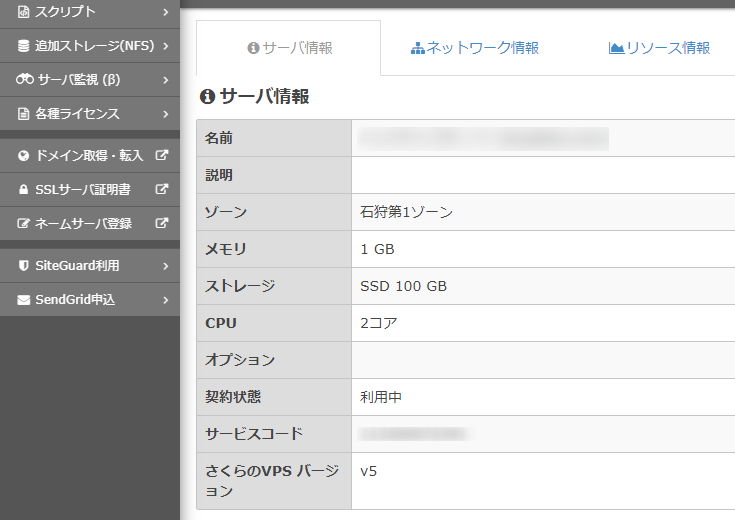
コントロールパネルからサーバを停止して「スケールアップ」を申し込み、プランの変更処理が終了した段階で、コンパネの「サーバ情報」ではストレージは「SSD 100GB」となっています。
しかし、サーバを起動してSSH接続して確認してみたところ、CPUとメモリは自動的に新プランのスペックで認識されていましたがストレージの空き容量はそのままです。
# df -h
ファイルシス   サイズ  使用  残り 使用% マウント位置
devtmpfs         486M     0  486M    0% /dev
tmpfs            496M     0  496M    0% /dev/shm
tmpfs            496M  6.8M  489M    2% /run
tmpfs            496M     0  496M    0% /sys/fs/cgroup
/dev/vda4         45G   12G   32G   27% /
/dev/vda2        477M  128M  320M   29% /boot
tmpfs            100M     0  100M    0% /run/user/1000
tmpfs            100M     0  100M    0% /run/user/0
というわけで、既存のパーティションを拡張して利用可能な状態にします。
既存のパーティションを拡張する手順
ここからは、冒頭の部分だけ、さくらのVPSの公式マニュアル「さくらのVPS ディスク拡張手順 (標準OS CentOS7.2)」に記載されていた手順を踏襲して行います。
gdiskのインストール
まず、パーティション情報を変更するためにgdiskというパッケージを利用するのでインストールします。
# yum -y install gdisk
読み込んだプラグイン:fastestmirror, langpacks
Loading mirror speeds from cached hostfile
 * base: ty1.mirror.newmediaexpress.com
 * centos-sclo-rh: ty1.mirror.newmediaexpress.com
 * centos-sclo-sclo: ty1.mirror.newmediaexpress.com
 * extras: ty1.mirror.newmediaexpress.com
 * remi-safe: rpms.remirepo.net
 * updates: ty1.mirror.newmediaexpress.com
依存性の解決をしています
--> トランザクションの確認を実行しています。
---> パッケージ gdisk.x86_64 0:0.8.10-3.el7 を インストール
--> 依存性解決を終了しました。

依存性を解決しました

===============================================================================================
 Package             アーキテクチャー     バージョン                  リポジトリー        容量
===============================================================================================
インストール中:
 gdisk               x86_64               0.8.10-3.el7                base               190 k

トランザクションの要約
===============================================================================================
インストール  1 パッケージ

総ダウンロード容量: 190 k
インストール容量: 660 k
Downloading packages:
gdisk-0.8.10-3.el7.x86_64.rpm                                           | 190 kB  00:00:00
Running transaction check
Running transaction test
Transaction test succeeded
Running transaction
  インストール中          : gdisk-0.8.10-3.el7.x86_64                                      1/1
  検証中                  : gdisk-0.8.10-3.el7.x86_64                                      1/1

インストール:
  gdisk.x86_64 0:0.8.10-3.el7

完了しました!
現在のディスクの状況を確認
gdisk -l コマンドで状況確認
# gdisk -l /dev/vda
GPT fdisk (gdisk) version 0.8.10

Partition table scan:
  MBR: protective
  BSD: not present
  APM: not present
  GPT: present

Found valid GPT with protective MBR; using GPT.
Disk /dev/vda: 209715200 sectors, 100.0 GiB
Logical sector size: 512 bytes
Disk identifier (GUID): D53C0ED9-670F-4703-95AF-25D1AE1381C5
Partition table holds up to 128 entries
First usable sector is 34, last usable sector is 104857566
Partitions will be aligned on 2048-sector boundaries
Total free space is 4669 sectors (2.3 MiB)

Number  Start (sector)    End (sector)  Size       Code  Name
   1            2048            4095   1024.0 KiB  EF02  BIOS
   2            4096         1028095   500.0 MiB   0700  Microsoft
   3         1028096         9416703   4.0 GiB     8200  Linux
   4         9416704       104854911   45.5 GiB    0700  Microsoft
「Total free space is 4669 sectors (2.3 MiB)」と表示されているので、フリースペースは2.3MBしか認識されていません。
【2】lsblkコマンドで状況確認
# lsblk
NAME   MAJ:MIN RM  SIZE RO TYPE MOUNTPOINT
sr0     11:0    1 1024M  0 rom
vda    253:0    0  100G  0 disk
├─vda1 253:1    0    1M  0 part
├─vda2 253:2    0  500M  0 part /boot
├─vda3 253:3    0    4G  0 part [SWAP]
└─vda4 253:4    0 45.5G  0 part /
ディスク「vda」は100GBあるのに、パーティション「vda1」~「vda4」の合計が50GBしかありません。
sgdisk -s を実行
sgdiskの「-s」オプションを実行してパーティションの並び替え(ソート)を行います。
# sgdisk -s /dev/vda
Warning: The kernel is still using the old partition table.
The new table will be used at the next reboot.
The operation has completed successfully.
再度gdisk -lコマンドで状況を確認します。
# gdisk -l /dev/vda
GPT fdisk (gdisk) version 0.8.10

Partition table scan:
  MBR: protective
  BSD: not present
  APM: not present
  GPT: present

Found valid GPT with protective MBR; using GPT.
Disk /dev/vda: 209715200 sectors, 100.0 GiB
Logical sector size: 512 bytes
Disk identifier (GUID): D53C0ED9-670F-4703-95AF-25D1AE1381C5
Partition table holds up to 128 entries
First usable sector is 34, last usable sector is 209715166
Partitions will be aligned on 2048-sector boundaries
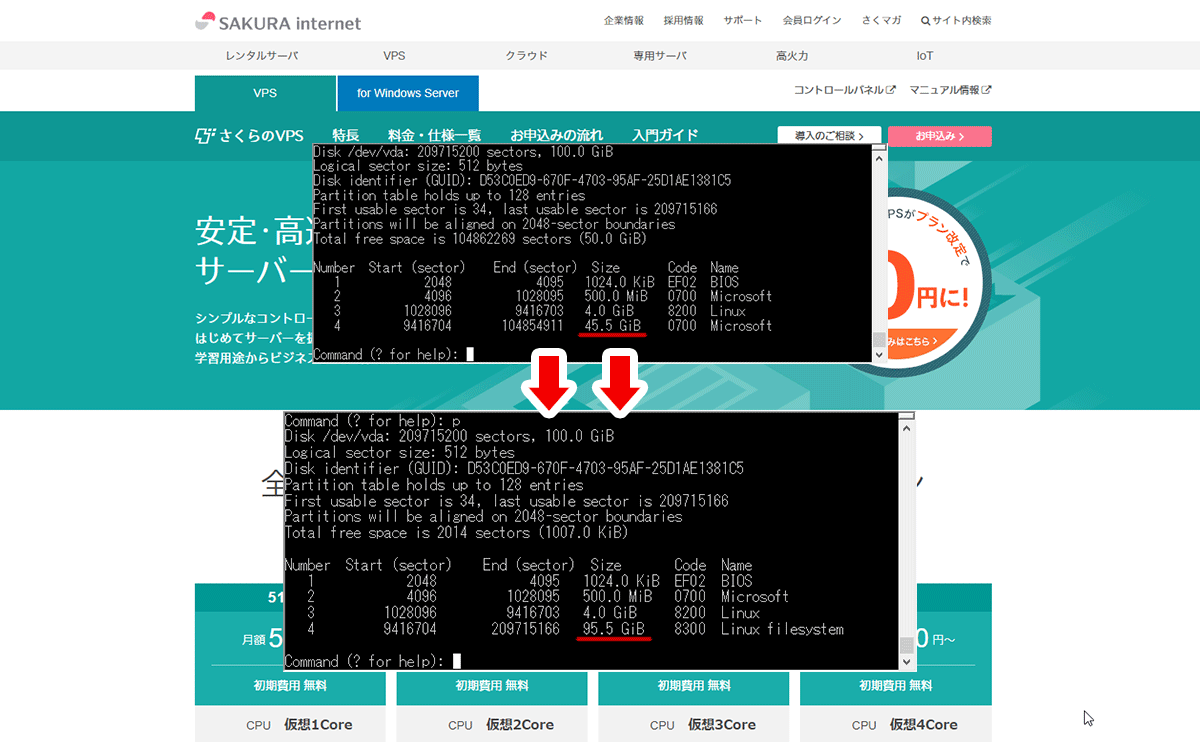
Total free space is 104862269 sectors (50.0 GiB)

Number  Start (sector)    End (sector)  Size       Code  Name
   1            2048            4095   1024.0 KiB  EF02  BIOS
   2            4096         1028095   500.0 MiB   0700  Microsoft
   3         1028096         9416703   4.0 GiB     8200  Linux
   4         9416704       104854911   45.5 GiB    0700  Microsoft
「Total free space is 104862269 sectors (50.0 GiB)」と表示されているので、フリースペースが50GBに増えました。
パーティションを拡張
先ほど調べたディスク「/dev/vda」のパーティションの4番(/dev/vda4)を拡張します。
※「パーティションの削除」⇒「同名の大きなパーティションの作り直し」という処理を行っても、ファイルシステムとスタートセクターが同じであればパーティション内のデータには影響はありません。
■gdiskの対話モードを起動
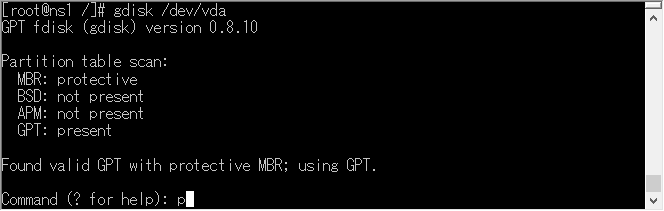
# gdisk /dev/vda
対話モードを起動するとコマンド(Command)を聞いてきますので「p」と入力してEnterキーを押します。(※「p」はパーティションを表示しろという意味です。)
次に「d」と入力してEnterキーを押します。(※「d」はパーティションを削除しろという意味です。)
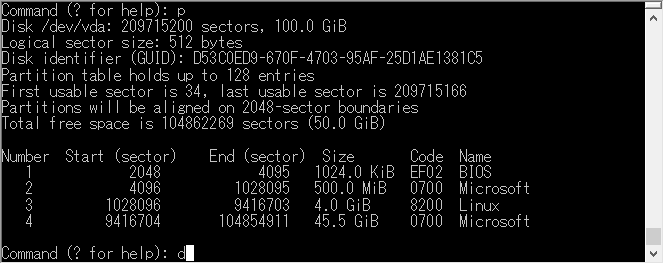
削除するパーティションの番号を聞いてきますので、「4」と入力してEnterキーを押します。

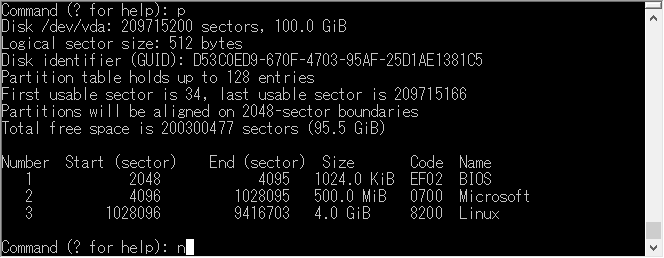
4番のパーティションが削除されたか確認するために「p」と入力してEnterキーを押します。

4番のパーティションが削除されたことを確認し、次は「n」と入力してEnterキーを押します。(※「n」はパーティションを新規作成しろという意味です。)
新規作成するパーティションの番号を聞いてきますので、「4」と入力してEnterキーを押します。

パーティションの始点であるファーストセクター「First sector」を聞いてきますので、何も入力せずにEnterキーを押します。(※何も入力しないとデフォルト値が設定されます。)

パーティションの終点のラストセクター「Last sector」を聞いてきますので、何も入力せずにEnterキーを押します。(※何も入力しないとデフォルト値が設定されます。)

ファイルシステムの「Hex code」または「GUID」を聞いてきますので何も入力せずにEnterキーを押します。(※何も入力しないと現在のCurrent typeである「Linux filesystem」のHex code「8300」が設定されます。)

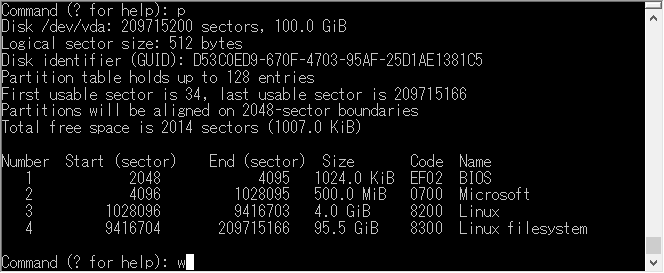
パーティションの新規作成が正常に完了したか確認するために「p」と入力してEnterキーを押します。

サイズ容量が増加した4番のパーティションが新規作成されているのを確認し、「w」と入力してEnterキーを押します。(※「w」は変更したパーティション情報を書き込めという意味です。)
最終確認をしてきますので、「Y」と入力してEnterキーを押します。

以上でパーティションの拡張処理は完了です。

サーバー再起動
ここで一旦サーバーを再起動しましょう。
# shutdown -r now
サーバー再起動が完了したらdfコマンドで確認します。
# df -T
ファイルシス   タイプ   1K-ブロック     使用   使用可 使用% マウント位置
devtmpfs       devtmpfs      496928        0   496928    0% /dev
tmpfs          tmpfs         507344        0   507344    0% /dev/shm
tmpfs          tmpfs         507344     6900   500444    2% /run
tmpfs          tmpfs         507344        0   507344    0% /sys/fs/cgroup
/dev/vda4      ext4        46926280 11777392 32746600   27% /
/dev/vda2      ext4          487652   130319   327637   29% /boot
tmpfs          tmpfs         101472        0   101472    0% /run/user/1000
「/dev/vda4」の容量が増えていません。
パーティションサイズの拡張をOSが認識していないようなので、ファイルシステムの拡張を認識させる必要があります。
ここで、「/dev/vda4」のファイルシステム(上記コマンド結果の『タイプ』の部分)が「ext4」なのか「xfs」なのかにより次の処理が変わります。
ファイルシステムの拡張
「/dev/vda4」のファイルシステムが「ext4」の場合はresize2fsを実行
パーティションの拡張を、resize2fsコマンドを実行して認識させます。
※「/dev/vda4」のファイルシステムが「ext4」の場合はresize2fsコマンドを利用します。
# resize2fs /dev/vda4
resize2fs 1.42.9 (28-Dec-2013)
Filesystem at /dev/vda4 is mounted on /; on-line resizing required
old_desc_blocks = 3, new_desc_blocks = 6
The filesystem on /dev/vda4 is now 25037307 blocks long.
「/dev/vda4」のファイルシステムが「xfs」の場合はxfs_growfsを実行
パーティションの拡張を、xfs_growfsコマンドを実行して認識させます。
※「/dev/vda4」のファイルシステムが「xfs」の場合はxfs_growfsコマンドを利用します。)
# xfs_growfs /dev/vda4
meta-data=/dev/vda4              isize=512    agcount=34, agsize=361151 blks
         =                       sectsz=512   attr=2, projid32bit=1
         =                       crc=1        finobt=0 spinodes=0
data     =                       bsize=4096   blocks=11929776, imaxpct=25
         =                       sunit=0      swidth=0 blks
naming   =version 2              bsize=4096   ascii-ci=0 ftype=1
log      =internal               bsize=4096   blocks=2560, version=2
         =                       sectsz=512   sunit=0 blks, lazy-count=1
realtime =none                   extsz=4096   blocks=0, rtextents=0
data blocks changed from 11929776 to 25037563
ファイルシステムの拡張を確認
もう一度dfコマンドで確認します。
# df -T
ファイルシス   タイプ   1K-ブロック     使用   使用可 使用% マウント位置
devtmpfs       devtmpfs      496928        0   496928    0% /dev
tmpfs          tmpfs         507344        0   507344    0% /dev/shm
tmpfs          tmpfs         507344     6900   500444    2% /run
tmpfs          tmpfs         507344        0   507344    0% /sys/fs/cgroup
/dev/vda4      ext4        98559392 11779416 82285424   13% /
/dev/vda2      ext4          487652   130319   327637   29% /boot
tmpfs          tmpfs         101472        0   101472    0% /run/user/1000
「/dev/vda4」の容量が増えました。
これで、「さくらのVPSで増量した仮想ディスク容量を既存のパーティションを拡張してOSに認識させる作業」は完了です。
最後に念のためにもう一度サーバーの再起動をしておきましょう。
# shutdown -r now
備考【SSHのログ】
■その1(1度目の再起動まで)
※色が変わっている所が入力項目です。
# gdisk -l /dev/vda
GPT fdisk (gdisk) version 0.8.10

Partition table scan:
  MBR: protective
  BSD: not present
  APM: not present
  GPT: present

Found valid GPT with protective MBR; using GPT.
Disk /dev/vda: 209715200 sectors, 100.0 GiB
Logical sector size: 512 bytes
Disk identifier (GUID): D53C0ED9-670F-4703-95AF-25D1AE1381C5
Partition table holds up to 128 entries
First usable sector is 34, last usable sector is 104857566
Partitions will be aligned on 2048-sector boundaries
Total free space is 4669 sectors (2.3 MiB)

Number  Start (sector)    End (sector)  Size       Code  Name
   1            2048            4095   1024.0 KiB  EF02  BIOS
   2            4096         1028095   500.0 MiB   0700  Microsoft
   3         1028096         9416703   4.0 GiB     8200  Linux
   4         9416704       104854911   45.5 GiB    0700  Microsoft

# lsblk
NAME   MAJ:MIN RM  SIZE RO TYPE MOUNTPOINT
sr0     11:0    1 1024M  0 rom
vda    253:0    0  100G  0 disk
├─vda1 253:1    0    1M  0 part
├─vda2 253:2    0  500M  0 part /boot
├─vda3 253:3    0    4G  0 part [SWAP]
└─vda4 253:4    0 45.5G  0 part /

# sgdisk -s /dev/vda
Warning: The kernel is still using the old partition table.
The new table will be used at the next reboot.
The operation has completed successfully.

# gdisk -l /dev/vda
GPT fdisk (gdisk) version 0.8.10

Partition table scan:
  MBR: protective
  BSD: not present
  APM: not present
  GPT: present

Found valid GPT with protective MBR; using GPT.
Disk /dev/vda: 209715200 sectors, 100.0 GiB
Logical sector size: 512 bytes
Disk identifier (GUID): D53C0ED9-670F-4703-95AF-25D1AE1381C5
Partition table holds up to 128 entries
First usable sector is 34, last usable sector is 209715166
Partitions will be aligned on 2048-sector boundaries
Total free space is 104862269 sectors (50.0 GiB)

Number  Start (sector)    End (sector)  Size       Code  Name
   1            2048            4095   1024.0 KiB  EF02  BIOS
   2            4096         1028095   500.0 MiB   0700  Microsoft
   3         1028096         9416703   4.0 GiB     8200  Linux
   4         9416704       104854911   45.5 GiB    0700  Microsoft

# gdisk /dev/vda
GPT fdisk (gdisk) version 0.8.10

Partition table scan:
  MBR: protective
  BSD: not present
  APM: not present
  GPT: present

Found valid GPT with protective MBR; using GPT.

Command (? for help): p
Disk /dev/vda: 209715200 sectors, 100.0 GiB
Logical sector size: 512 bytes
Disk identifier (GUID): D53C0ED9-670F-4703-95AF-25D1AE1381C5
Partition table holds up to 128 entries
First usable sector is 34, last usable sector is 209715166
Partitions will be aligned on 2048-sector boundaries
Total free space is 104862269 sectors (50.0 GiB)

Number  Start (sector)    End (sector)  Size       Code  Name
   1            2048            4095   1024.0 KiB  EF02  BIOS
   2            4096         1028095   500.0 MiB   0700  Microsoft
   3         1028096         9416703   4.0 GiB     8200  Linux
   4         9416704       104854911   45.5 GiB    0700  Microsoft

Command (? for help): d
Partition number (1-4): 4

Command (? for help): p
Disk /dev/vda: 209715200 sectors, 100.0 GiB
Logical sector size: 512 bytes
Disk identifier (GUID): D53C0ED9-670F-4703-95AF-25D1AE1381C5
Partition table holds up to 128 entries
First usable sector is 34, last usable sector is 209715166
Partitions will be aligned on 2048-sector boundaries
Total free space is 200300477 sectors (95.5 GiB)

Number  Start (sector)    End (sector)  Size       Code  Name
   1            2048            4095   1024.0 KiB  EF02  BIOS
   2            4096         1028095   500.0 MiB   0700  Microsoft
   3         1028096         9416703   4.0 GiB     8200  Linux

Command (? for help): n
Partition number (4-128, default 4): 4
First sector (34-209715166, default = 9416704) or {+-}size{KMGTP}:
Last sector (9416704-209715166, default = 209715166) or {+-}size{KMGTP}:
Current type is 'Linux filesystem'
Hex code or GUID (L to show codes, Enter = 8300):
Changed type of partition to 'Linux filesystem'

Command (? for help): p
Disk /dev/vda: 209715200 sectors, 100.0 GiB
Logical sector size: 512 bytes
Disk identifier (GUID): D53C0ED9-670F-4703-95AF-25D1AE1381C5
Partition table holds up to 128 entries
First usable sector is 34, last usable sector is 209715166
Partitions will be aligned on 2048-sector boundaries
Total free space is 2014 sectors (1007.0 KiB)

Number  Start (sector)    End (sector)  Size       Code  Name
   1            2048            4095   1024.0 KiB  EF02  BIOS
   2            4096         1028095   500.0 MiB   0700  Microsoft
   3         1028096         9416703   4.0 GiB     8200  Linux
   4         9416704       209715166   95.5 GiB    8300  Linux filesystem

Command (? for help): w

Final checks complete. About to write GPT data. THIS WILL OVERWRITE EXISTING
PARTITIONS!!

Do you want to proceed? (Y/N): Y
OK; writing new GUID partition table (GPT) to /dev/vda.
Warning: The kernel is still using the old partition table.
The new table will be used at the next reboot.
The operation has completed successfully.

# shutdown -r now
■その2(最後の再起動まで)
※「/dev/vda4」のファイルシステムが「ext4」の場合です。(ファイルシステムが「xfs」の場合は、resize2fsコマンドが xfs_growfsコマンドに変更になります。)
# df -T
ファイルシス   タイプ   1K-ブロック     使用   使用可 使用% マウント位置
devtmpfs       devtmpfs      496928        0   496928    0% /dev
tmpfs          tmpfs         507344        0   507344    0% /dev/shm
tmpfs          tmpfs         507344     6900   500444    2% /run
tmpfs          tmpfs         507344        0   507344    0% /sys/fs/cgroup
/dev/vda4      ext4        46926280 11777392 32746600   27% /
/dev/vda2      ext4          487652   130319   327637   29% /boot
tmpfs          tmpfs         101472        0   101472    0% /run/user/1000

# resize2fs /dev/vda4
resize2fs 1.42.9 (28-Dec-2013)
Filesystem at /dev/vda4 is mounted on /; on-line resizing required
old_desc_blocks = 3, new_desc_blocks = 6
The filesystem on /dev/vda4 is now 25037307 blocks long.

# df -T
ファイルシス   タイプ   1K-ブロック     使用   使用可 使用% マウント位置
devtmpfs       devtmpfs      496928        0   496928    0% /dev
tmpfs          tmpfs         507344        0   507344    0% /dev/shm
tmpfs          tmpfs         507344     6900   500444    2% /run
tmpfs          tmpfs         507344        0   507344    0% /sys/fs/cgroup
/dev/vda4      ext4        98559392 11779416 82285424   13% /
/dev/vda2      ext4          487652   130319   327637   29% /boot
tmpfs          tmpfs         101472        0   101472    0% /run/user/1000

# shutdown -r now
まとめ
さくらのVPSで「ストレージ変更オプション」を申し込んだり、スケールアップして上位プランに変更した際には、増量した仮想ディスク容量をOSに認識させる作業が必須。
その際に新しいパーティションを作成して利用するより、既存のパーティションを拡張したほうが何かと便利。
gdiskコマンドとresize2fsコマンドを利用して既存のパーティションを拡張しましょう。
以上で解決です。